
OCR guide
The best way to add OCR to an iOS app.
OCR is not just text recognition. A useful OCR feature includes capture, image quality, recognition, review, correction, storage, and the next business action. The best implementation depends on what the recognized text is supposed to become.
Define what OCR should produce
Before choosing an OCR API, define the output. Does the app need raw text, a searchable document, receipt fields, product codes, names, addresses, or line items? A receipt app and a language lookup app both use OCR-like recognition, but the product behaviour is different.
Apple's Vision framework supports text recognition on device. Apple documents both modern text-recognition requests and the older VNRecognizeTextRequest path, including fast and accurate recognition options and language configuration. For many iOS apps, starting with Vision is the right default because it is private, local, and integrated with the platform.
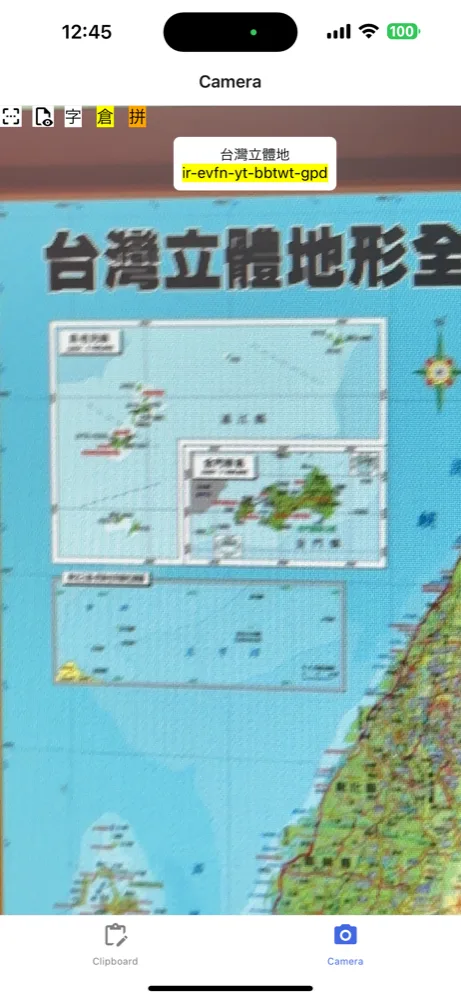
604Apps has two useful references. Receiptopia turns receipt images into structured records. CJExplorer uses camera recognition for language lookup. In both cases, OCR is not the final screen. OCR feeds a task.
Design the capture and review flow
Good OCR starts before recognition. The app should help the user capture a readable image, handle permissions, avoid confusing camera states, and provide feedback when the input is poor. If the user has to fight the camera, the AI result will not matter.
After recognition, the app needs a review path. Receipts need editable merchant, date, total, tax, category, and note fields. Documents may need highlighted text, search, or export. Product labels may need a confirmation step. A staff workflow may need to attach recognized text to a job, customer, or inventory record.
Review is where trust is built. Users forgive OCR that needs correction if correction is easy. They do not forgive an app that silently saves wrong data.
When to add AI after OCR
OCR extracts text. AI can help interpret it. For example, a model can classify a receipt, summarize a document, identify action items, or map messy text into structured fields. That should happen after the app has a reliable OCR and review foundation.
A Vancouver business app might scan supplier receipts, extract totals with Vision, then use AI to suggest categories or notes. A field app might scan a serial number or label, then attach the result to a service record. A learning app might recognize text from a page, then turn it into practice prompts.
The best way to add OCR is to ship a narrow loop first: capture, recognize, review, save. Once that loop is trusted, AI interpretation can make the feature more powerful without making it fragile.
What to prepare before contacting 604Apps
A useful first note does not need to be polished. For this topic, start with the business goal, the target users, the current workaround, and the result the app should create. For example, say whether the app is for customers, staff, or both; whether it needs iPhone, iPad, Mac, or all three; and whether the first release is meant for the public App Store or a private team workflow.
Include any screenshots, spreadsheets, forms, menus, receipts, scripts, training material, or existing tools that explain the workflow. 604Apps can use those materials to identify the screens, data model, risky features, launch path, and the smallest release that would be worth testing with real users. Notes about timeline, budget comfort, required integrations, and current pain points are also useful. The estimate is stronger when the conversation starts with real operating details instead of a broad feature wishlist.