
Start with the recommended 4× output or choose 720p, 1080p, 1440p, or 4K while keeping the source aspect ratio.
Native AI video upscaling for macOS
AI Video Upscaler for Mac: 100% Local & Offline
Upscale low-resolution video to 1080p or 4K with AI directly on your Mac. ReviveFrame restores old home videos, compressed clips and archive footage without uploading anything to the cloud.
AI video upscaling
100% offline
Private. Nothing uploaded
Optimized for Apple silicon
No subscription
Before/after comparison
One-time purchase · macOS 13 or later · No account required
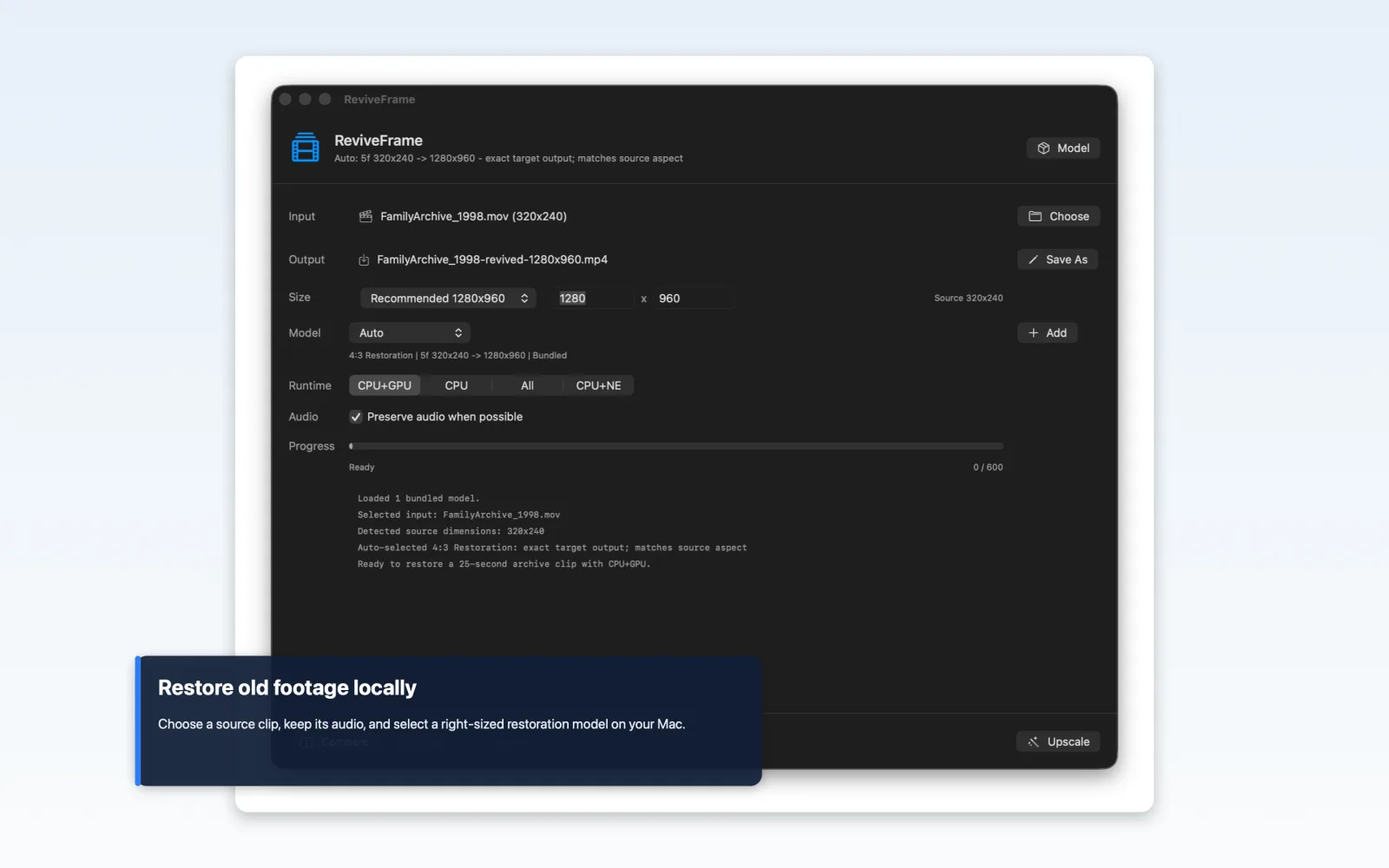
Focused on the footage you care about
Upscale old videos locally, with practical output choices.
ReviveFrame is made for family videos, travel footage, personal archives, and compressed clips that look too small or soft on a modern display.
The bundled AI model runs on your Mac. Your source video, processing frames, and finished export are never sent to a server.
ReviveFrame writes a separate MP4 export and leaves the source file unchanged.
Original audio is carried into the restored export when the source format permits it, with conversion when direct copying is unavailable.
See elapsed time, estimated time remaining, and frame progress. Pause a long restoration and resume it later.
Open Compare during or after processing and play the original and restored footage together before using the result.
A straightforward Mac workflow
Choose. Upscale. Compare. Export.
Select an old home movie, archive clip, or other low-resolution video that macOS can open.
Use the recommended 4× size or choose a familiar target such as 1080p or 4K.
Let the bundled AI model process the frames on your Mac while ReviveFrame tracks progress and time remaining.
Review both versions with linked playback, then keep the finished MP4 if it improves the footage.
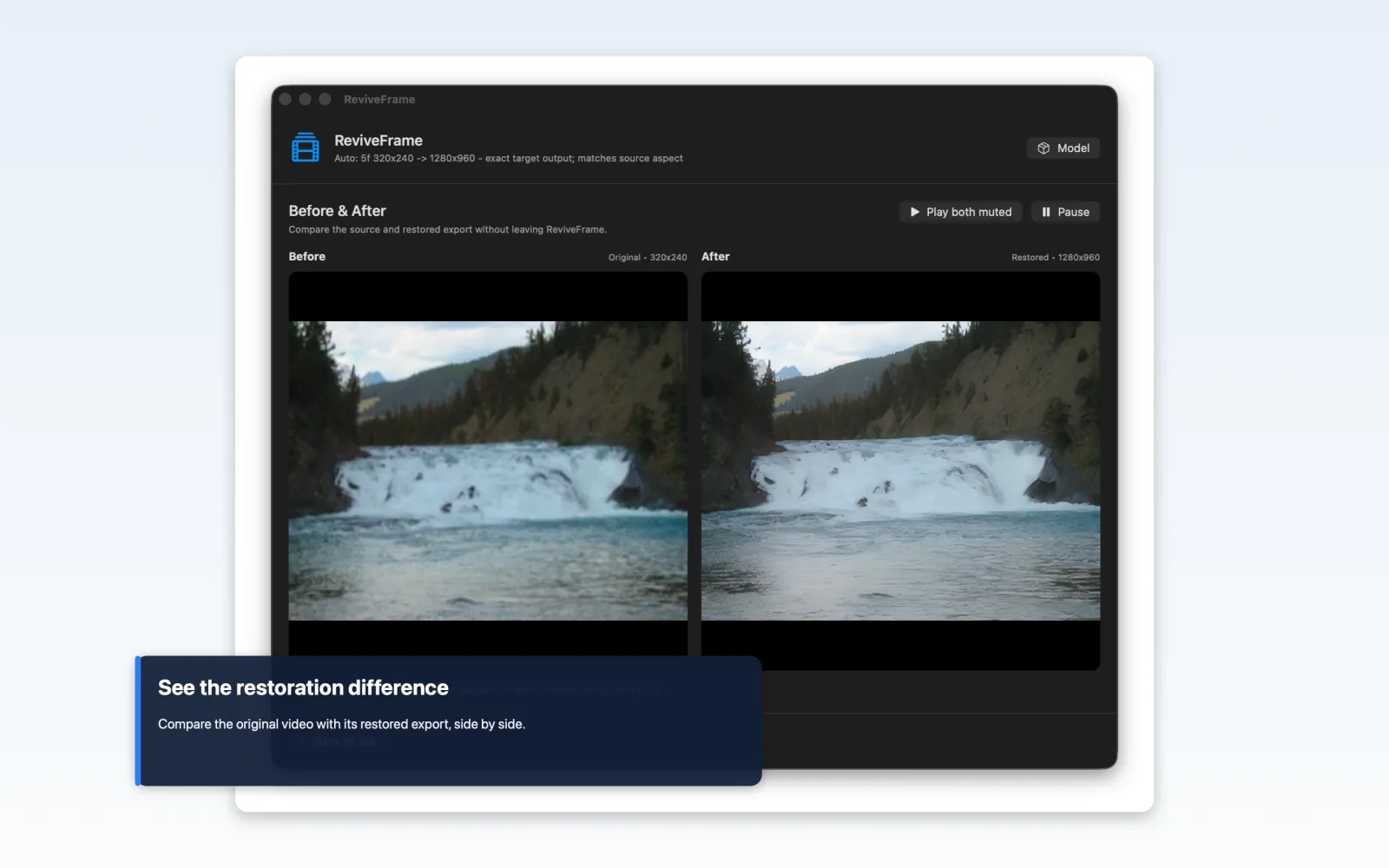
Compare the result
See the original and restored video side by side.
The example shows the original 320 × 240 video on the left and its restored 1280 × 960 output on the right. Linked playback keeps both versions in sync so you can inspect motion and detail before deciding whether to keep the result.
If you are also considering a professional tool, read the ReviveFrame and Topaz Video comparison.
Private by design
Your videos stay on your Mac.
Home movies and personal archives can be large, sensitive, and irreplaceable. ReviveFrame does not require an account or upload your footage. The AI model is bundled with the app, and the restoration pipeline runs locally.
No account
No media uploads
No cloud processing
No subscription
Common questions
ReviveFrame FAQ
Does ReviveFrame upload my video?
No. After installation, restoration runs locally with the AI model bundled in the app. Source footage and restored exports remain on your Mac.
Can it upscale a video to 4K?
Yes. ReviveFrame offers 720p, 1080p, 1440p, and 4K targets as well as a recommended 4× output. The most useful target depends on the quality and dimensions of the source.
Will it change my original video?
No. ReviveFrame creates a separate MP4 export and keeps the selected source file intact.
What happens to the original audio?
ReviveFrame preserves source audio when the format allows it and can convert it to AAC when it cannot be copied directly.
Is ReviveFrame a subscription?
No. ReviveFrame is a one-time purchase from the Mac App Store.
Which Macs can run it?
ReviveFrame requires macOS 13 or later and is optimized for Apple silicon. Processing speed depends on the footage, output target, and Mac hardware.
One app. One purchase. Your Mac.
Upscale old footage on your Mac.
Upscale privately to 1080p or 4K, compare the result, and keep your original untouched.