
A practical workflow for restoring and upscaling old videos on Mac.
Video restoration is a long-running media workflow, not a one-click promise. A useful Mac app inspects the source, recommends an understandable output, keeps processing local, preserves the original, and lets the user compare the result before deciding it is better.
Set an honest goal for restoration
Upscaling can make low-resolution footage easier to watch on modern displays, reduce some visible degradation, and create a more practical delivery size. It cannot recover historical truth that was never captured. A model may infer sharper edges or texture, but inferred detail should not be described as a guaranteed reconstruction.
That is why the workflow matters. The user should know the original resolution and duration, the proposed output size, the expected processing time, and where the new file will be saved. The original should remain untouched, and the restored export should be easy to compare and discard if it does not help.
Inspect the source before choosing an output
Old footage arrives in many shapes: standard-definition camcorder files, phone clips, home-movie transfers, heavily compressed downloads, interlaced sources, unusual aspect ratios, and videos with fragile audio. Resolution alone is not enough. The app also needs duration, frame rate, codec, colour characteristics, orientation, audio tracks, and a reliable way to decode frames.
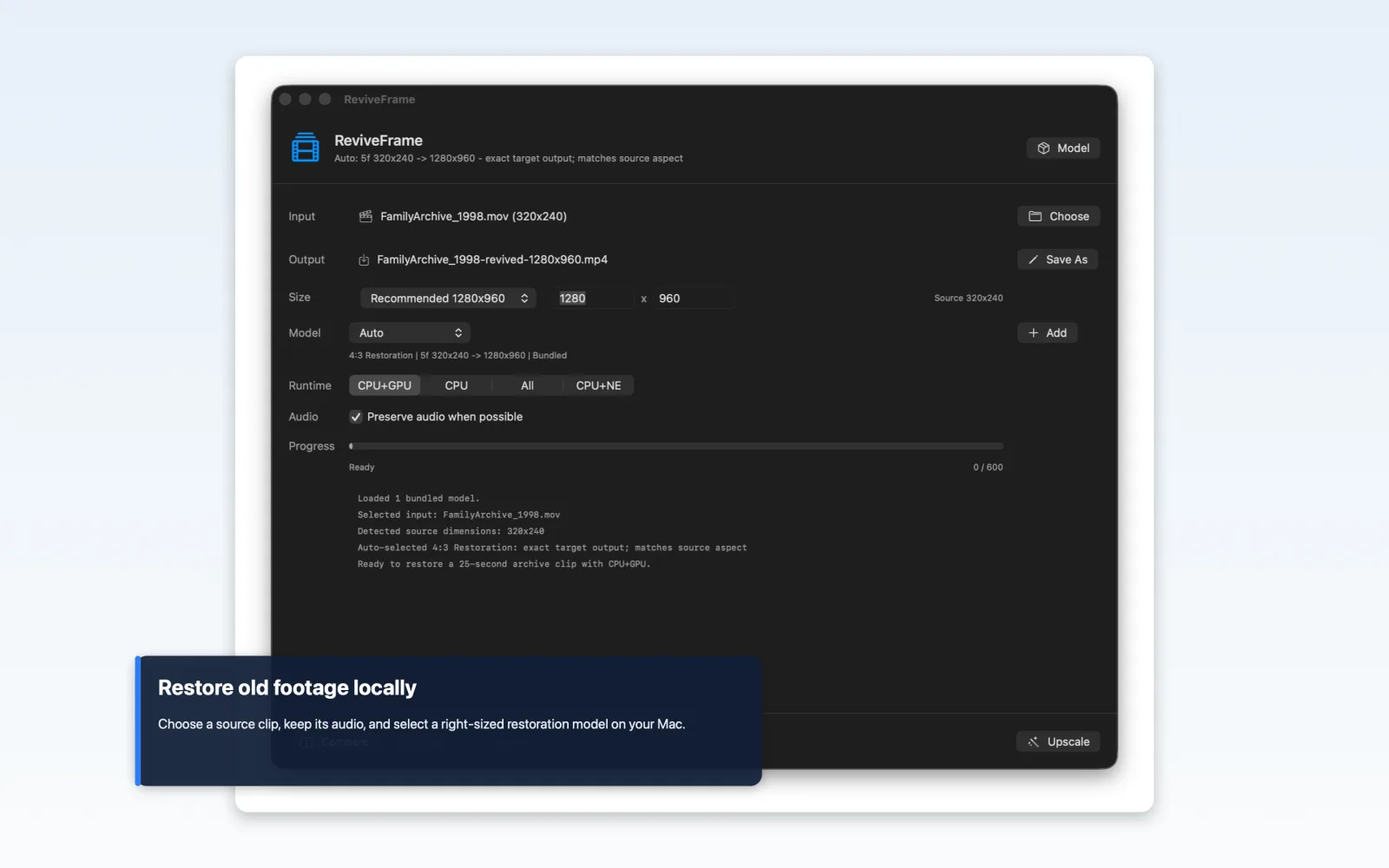
ReviveFrame reads the selected video and recommends a four-times output by default while offering common targets such as 720p, 1080p, 1440p, and 4K. Explicit targets keep the choice understandable and prevent a technically valid scale factor from producing an impractical delivery file.
A family archive, a web upload, a 4K television, and an editing intermediate do not need the same output. The app should explain the size choice instead of assuming the largest result is automatically best.
Treat performance as a product feature
Video restoration may process thousands of frames, and high-quality temporal models can be expensive even on Apple Silicon. A desktop app needs more than a progress bar. It should estimate the likely duration, update the estimate from measured throughput, stay responsive, support cancellation, and make partial or failed output unambiguous.
A short preview is often the best first interaction. Let the user test a representative segment before committing to an overnight batch. When the full export starts, show the destination, elapsed time, completed frames, and estimated time remaining. If models or presets have different memory and speed requirements, those tradeoffs belong in plain-language choices.
Preserve the media around the enhanced frames
The model processes image frames, but the finished video also needs correct timing, colour handling, orientation, audio, and container output. A restoration pipeline should preserve the source frame cadence unless conversion is intentional, carry audio through when the format allows it, and export a standard file that other Mac and mobile apps can open.
ReviveFrame exports MP4 and preserves the original audio when the source permits. Keeping media preparation, model inference, and final export as explicit stages makes errors easier to report and prevents a successful frame pass from being mistaken for a complete, playable result.
Make comparison part of completion
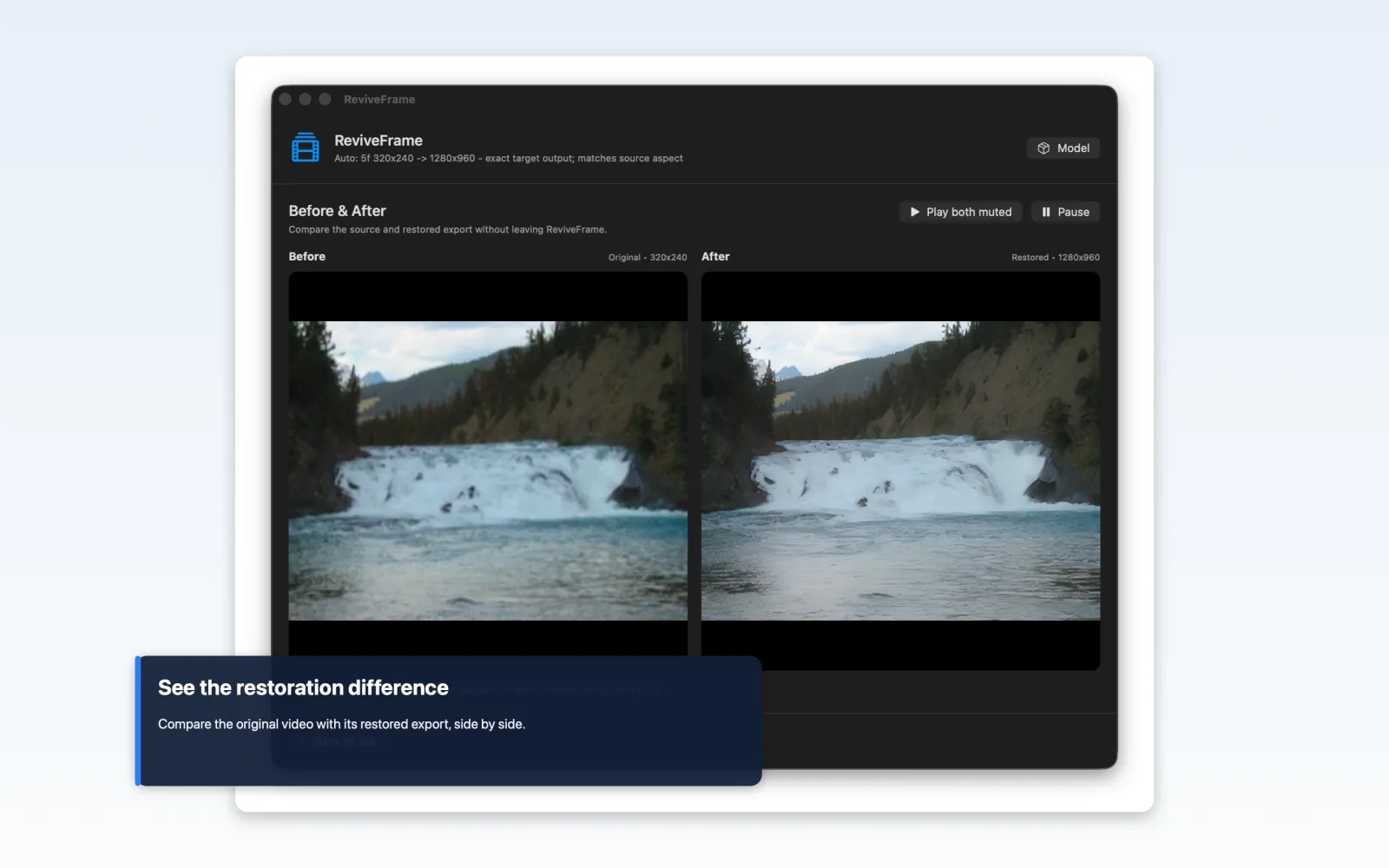
A processed file is not automatically a successful result. Upscaling can sharpen one area while introducing ringing, temporal shimmer, plastic texture, or unstable faces elsewhere. A side-by-side player with linked playback helps the user inspect motion and detail at the same moment in both files.
The comparison should make it easy to pause, seek, replay a difficult section, and understand which side is original. For a preview-first product, the same viewer can compare a short test segment before the full export and the completed files afterward.
Why local processing is a strong fit
Old home movies and personal archives are sensitive, large, and slow to upload. A bundled local model keeps source footage, inference, and exports on the Mac, avoids an account requirement, and gives the user a clear answer about where the media goes.
Local processing also has real constraints: the app bundle or model download may be large, older Macs may be unsupported, long jobs use power and storage, and model updates require a distribution plan. Privacy is strongest when these operational limits are explained as clearly as the no-upload benefit.
What to define before building a restoration app
Collect representative footage with permission to test: different resolutions, codecs, durations, motion levels, faces, noise, compression damage, and audio layouts. Define the minimum acceptable quality, target Mac hardware, preview length, overnight batch expectation, output formats, and how results will be reviewed.
Benchmark quality and runtime before investing in a large production interface. A small feasibility workflow can answer whether the chosen model is good enough, fast enough, memory-safe, distributable, and compatible with the required media. That evidence should decide whether to build, pivot, or stop.